Installation Guide
This page covers everything you need to download before installing Cosmic Vision, followed by the steps to install the Cosmic Vision Python environment.
1. Required Downloads
Titan Two Users
Download the following:
-
Gtuner
Official Titan Two software used to program scripts and adjust device configuration.
This is still required even when using Helios to program the Titan Two script. -
Helios
Alternative to Gtuner for running CV scripts.
Recommended by most users.
Remote Play (Internal – PS5 Only)
No additional downloads are required.
Cosmic Vision communicates directly with the PS Remote Play session.
External Mode
(PC, PS Remote Play, Xbox Remote Play via apps, or virtual controller output)
Download the following:
-
HIDHide
Used to hide your physical controller from games while Cosmic Vision sends virtual input. -
Remote Application (as required)
- Chiaki — for PlayStation
- Greenlight or Xbox App — for Xbox Cloud/Console streaming
- Any other third-party remote app
Cosmic Vision Files
Download the latest version of Cosmic Vision:
Where Do I Find the Latest Version?
The latest Cosmic Vision download is always posted in
Discord → #vision-changelog
2. Installing the Cosmic Vision Environment
Follow these steps exactly to avoid installation issues.
Step 1 — Extract the Files
- Download the latest Cosmic Vision
.zipfrom Discord. - Extract the folder to somewhere easily accessible, like
C:\Cosmic Vision
Do NOT extract to Desktop/Documents if OneDrive is enabled
OneDrive syncing can block or delete Python environment files.
Always extract to a location NOT synced with OneDrive.
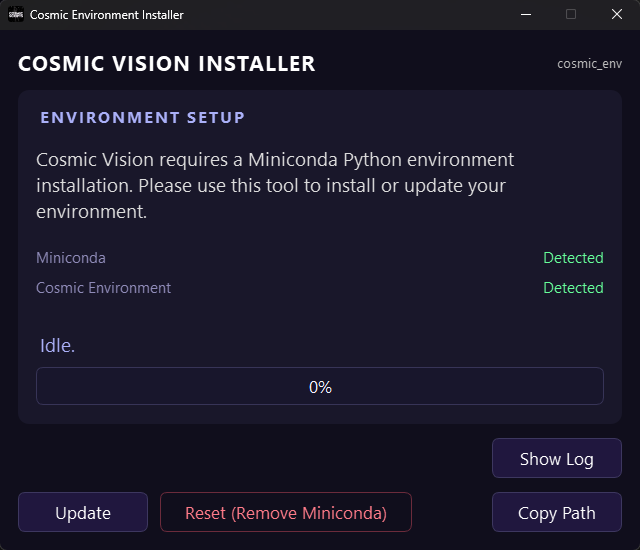
Step 2 — Run the Installer
Inside your Cosmic Vision folder:
- Open the installer folder
- Run Cosmic Environment Installer
- Click "Copy Path" when completed
this will make pasting your environment path later on easier
The installer will create the Python environment and install all required dependencies.
If Something Fails
- Click Reset in the installer to perform a clean reinstall of Miniconda & dependencies
- Run the installer as Administrator (right-click → Run as administrator)
- Ensure no antivirus is blocking
.bator.exefiles
3. Running Cosmic Vision
After installation, select the guide that matches your setup:
- GTuner — for Titan Two
- Helios — for Titan Two (Preferred)
- Remote Play — Internal Remote Play for PS5
- External — controller emulation mode for PC and other remote applications