Remote Play Setup (PS5)
Cosmic Vision supports two Remote Play methods:
-
Internal Remote Play — Recommended
Uses the built-in Vision remote play system.
This is recommended due to simplicity. -
External Mode
Uses 3rd-party apps like Chiaki & HIDHide.
Which Should You Use?
Use Internal Remote Play first.
Only switch to External Mode if you experience random button issues or network has issues with the internal method.
Requirements
Before starting, make sure you have downloaded and installed all required programs and environments in the Installation Guide
Internal Remote Play
1. Open the Cosmic Remote Launcher
In your extracted Cosmic Vision folder, open the Cosmic Remote Launcher
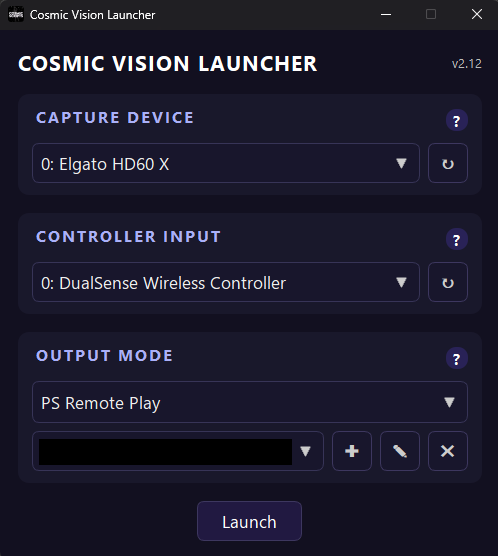
2. Select Capture Card & Controller Input
- Choose your Capture Device
- Choose your Controller Input device
None found?
- Open HIDHide and ensure your controller is not hidden
- Try a different USB port or cable
- Refresh the Controller Input
3. Add Your PlayStation Account
- Press the + button
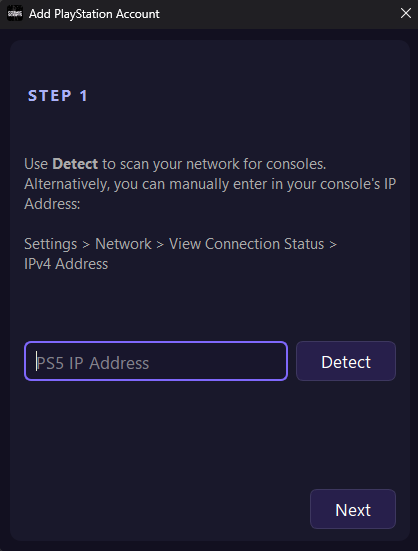
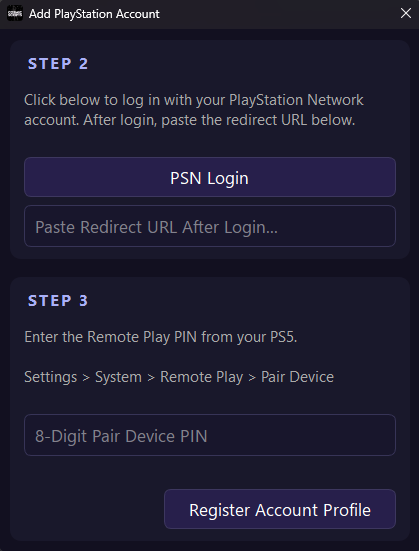
- Follow the on-screen instructions to add your PSN account
Connection Note
- Use the Detect button to scan for consoles on your network
- If this returns no results, manually enter your PS5 IP Address
- Ensure your PC and PS5 are on the same LAN/subnet
Error too many attempts
- Open a new browser tab and navigate to PlayStation Network
- Log into your PlayStation account normally
- Then retry the launcher login link
4. Launch the Session
Press Launch.
Upon first run:
- A login window appears
- Enter your Discord ID (not your username)
How to Find Your Discord ID
Your Discord ID is an 18-digit number.
Type ?id in any Discord chat to find it.
Error During Launch
- Error connecting to device: Your console's IP address has changed. Edit your IP address using the pencil icon on the main launcher screen.
- Failed to Init Session; Reason: Unknown Error type: 2148567826: You need to enable Remote Play for your desired profile in the PS5 settings.
Performance Tips
Improve FPS & Stability
- Shrink or minimize the Cosmic Vision window until it shows 60 FPS
- Set Overlay → Meter or Overlay → Off in the Vision menu
(“Off” disables the on-screen overlay completely) - Ensure your PC and console are on wired Ethernet
- Keep the game window in 1080p / 60 FPS for best detection
5. Learn Cosmic Vision
Once Remote Play is connected and Vision is running:
Learn the GUI — to learn how to navigate the Cosmic Vision menu
Best Results Guide — to learn how to properly use Cosmic Vision