Vision Setup Guide
Follow this guide first to ensure your capture card, console settings, and device connections are correct before installing Cosmic Vision.
A. Console Setup
1. Capture Card Setup
PS5 Users Must Disable HDCP
Disable HDCP before connecting your capture card or you will get a black screen.
Path: Settings → System → HDMI → HDCP → Off
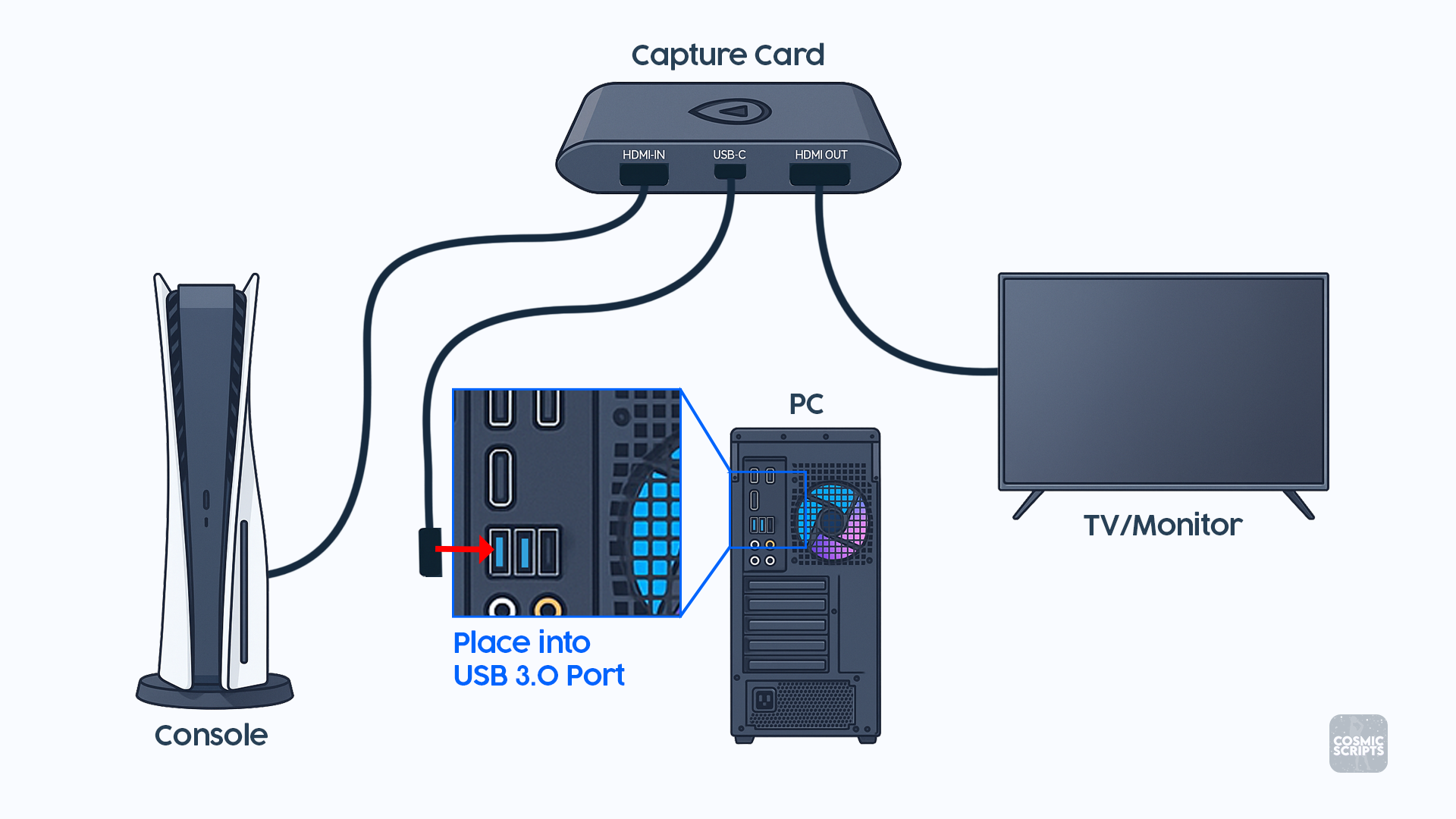
Connect your capture card using the standard wiring:
- Console HDMI OUT → Capture Card HDMI IN
- Capture Card USB → PC USB 3.0 (blue port)
- Capture Card HDMI OUT → TV/Monitor (your gameplay display)
2. Console Video Settings
These settings help Vision accurately detect your meter and avoid color inconsistencies.
Settings Reset on New Displays
Video settings often reset when changing HDMI devices.
Always verify them after connecting your capture card.
PlayStation 5
-
HDCP: Off
Settings → System → HDMI → HDCP -
HDR: Off
Settings → Screen and Video → HDR -
VRR: Off
Settings → Screen and Video → VRR -
RGB Range: Full
Settings → Screen and Video → RGB Range
Xbox Series X|S
-
HDR: Off
General → TV & display options → Video modes -
Color Space: PC RGB
General → TV & display options → Video fidelity & overscan → Color space -
Night Mode: Off
General → TV & display options → Night mode -
Color Filters: No correction selected
Accessibility → Color filters -
High Contrast: Off
Accessibility → High contrast
3. Controller Setup
Titan Two Setup (Non-PS5)
This method is used for non-PS5 users
If you are using Titan Two as your controller output:
- Connect Titan Two to PC via the
PROGport. - Connect your controller to the Titan Two's
Input-Aport. - Connect Titan Two to your console via the
Outputport.
Issues
If you experience any issues with your Titan Two output, make sure all lights on the device are green. Adjust Output Protocol and turn Off Force USB Prog Interface to full speed in the Device Configuration tab in Gtuner IV.
Titan Two Setup (PS5)
PS5 users running Titan Two must use a compatible bypass device such as the P5General, P5Mate, Cronus Zen, or Wingman FGC2.
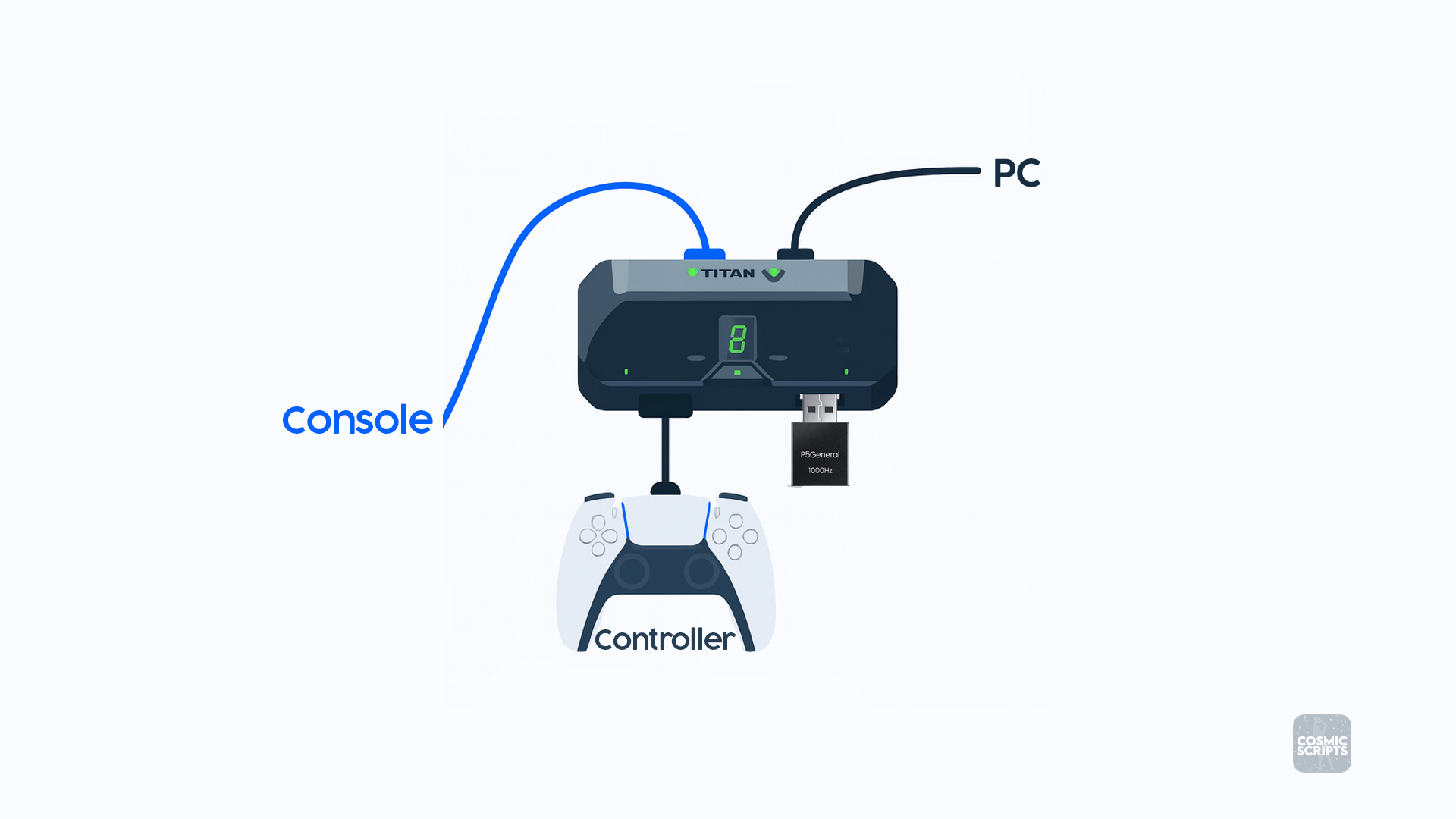
Titan Two + P5General
This method is preferred for PS5 users
The Besavior P5General is the cheapest option and provides the user with minimal input delay.
Note
Unlike other connection options, the P5General requires your Titan Two Output Protocol to be set to PlayStation 5
Connection order:
- Controller into
Input-A - P5General into
Input-B - Titan Two
Outputto Console - Titan Two
PROGto PC
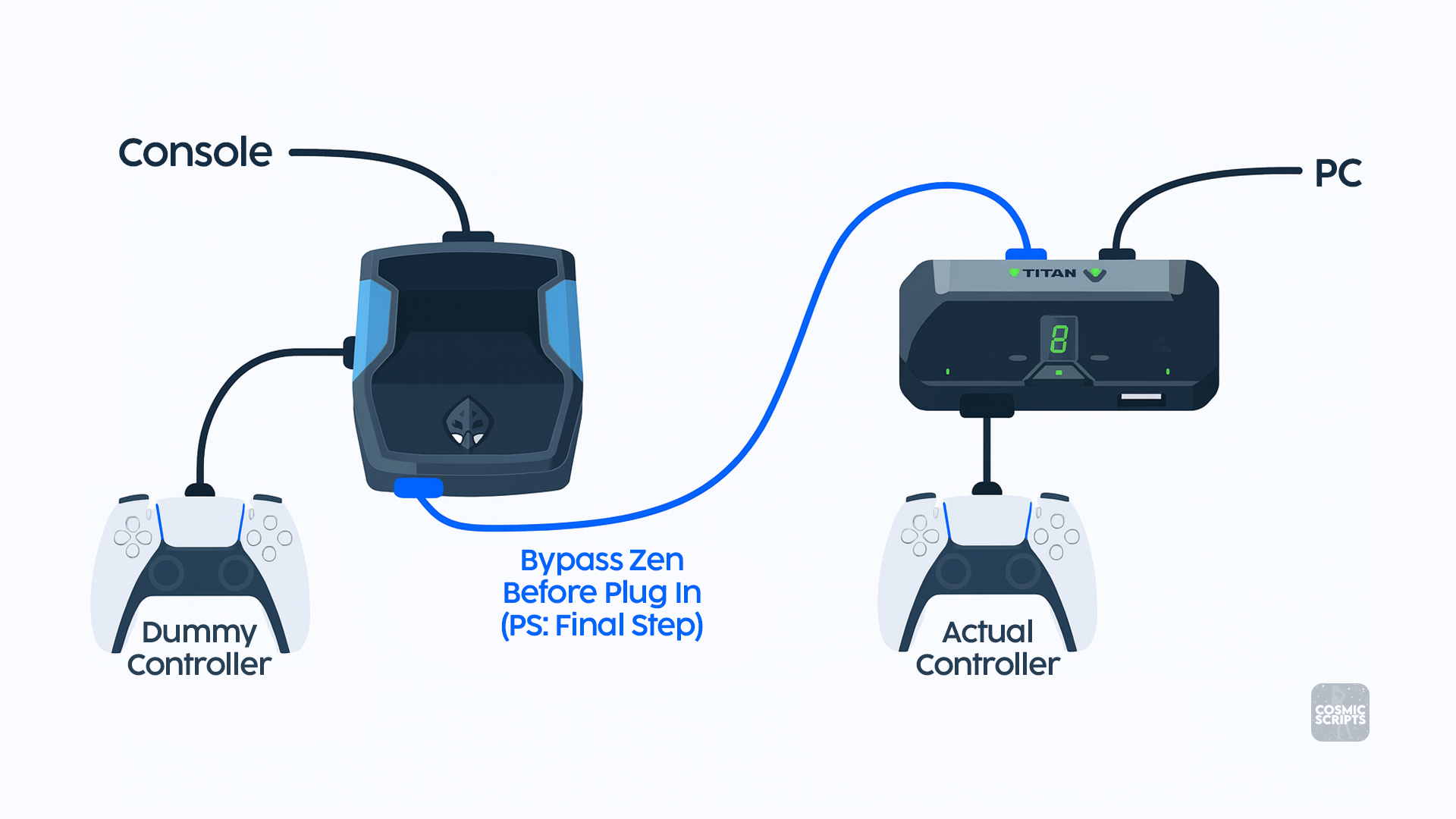
Titan Two + Zen Connection
Connection order:
- Bypass Zen with PS5 (Bypass Guide →)
- Connect Controller to Titan Two
Input-A - Titan Two
PROGto PC - Titan Two
Outputto Zen (Final Step)
Remote Play or PC Connection
- Connect your controller to your PC either via cable or wirelessly.
Want to use a Cronus Zen?
Cosmic Vision Remote Play can accept inputs from a Cronus Zen. Connect the Zen to your PC as normal through the output port. Cronus Zen Guide →
4. Ethernet USB Adapter Setup
A Ethernet USB Adapter is not required, however this provides more consistent timing when using Remote Play. Using an Adapter also allows you to use CosLink, the ultimate network tool that helps deliver a smoother, more consistent online experience by reducing sudden connection spikes and timing shifts.
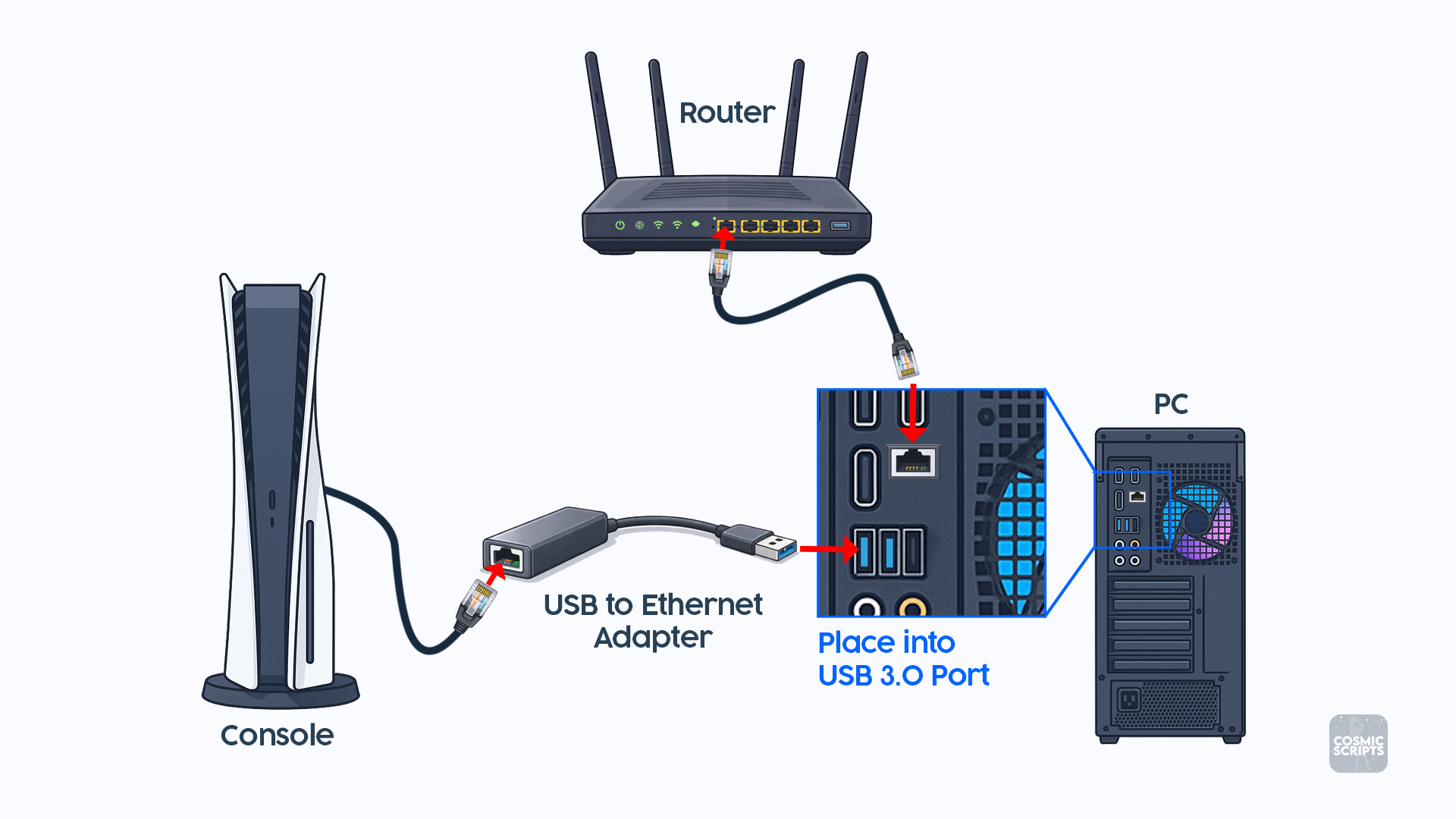
Adapter Connection
- Ethernet Cable from Router to PC
- Ethernet Cable from USB-Ethernet Adapter to Console
- USB-Ethernet Adapter into USB 3.0 Port (Blue)
Network Sharing
This step allows your console to receive internet access through your PC when using a USB-to-Ethernet adapter or direct Ethernet connection.
Required for USB Ethernet Setups
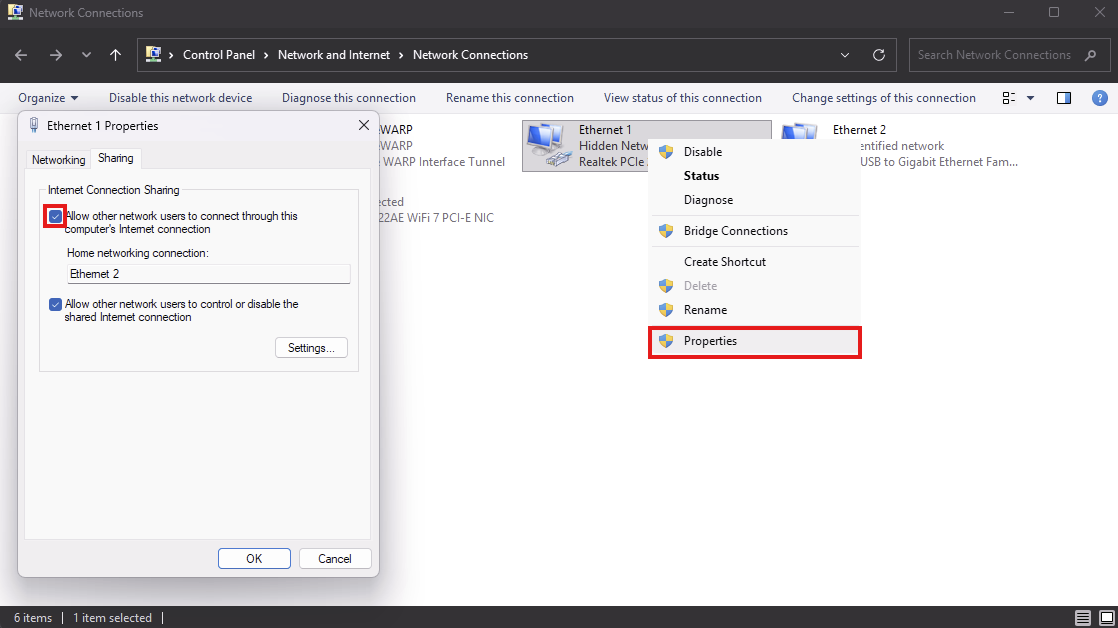
If your console is connected through your PC (instead of directly to the router), Internet Connection Sharing must be enabled.
- Search PC for "View Network Connections"
- Identify primary adapter (Ethernet 1)
- Right-click the adapter and select Properties
- Open the Sharing tab
- Allow other network users to connect through this computer’s Internet connection
- Select: Ethernet 2 (if applicable)
- Click
B. PC Setup (Steam Edition)
1. Virtual Capture Card Setup
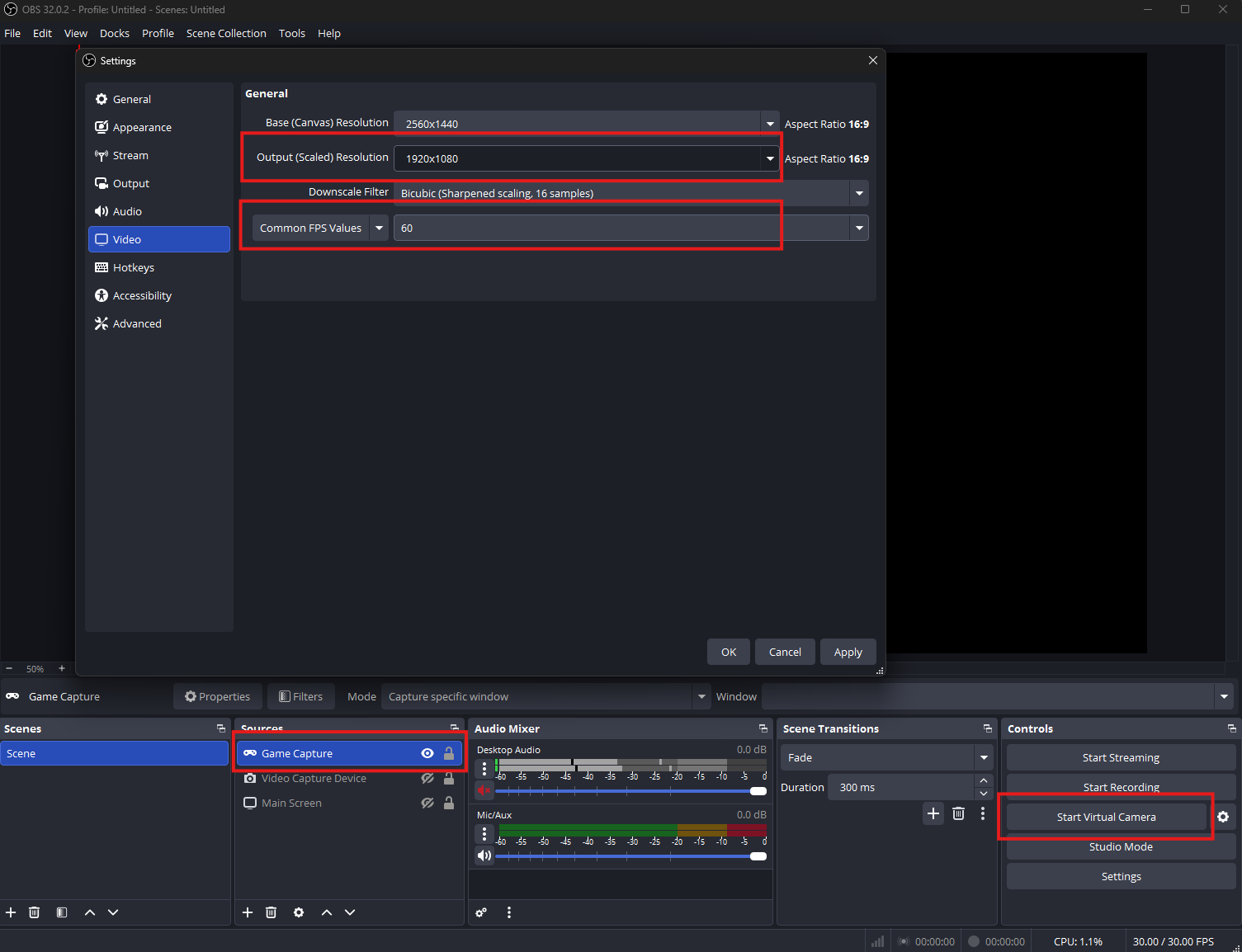
Use a virtual capture card, such as OBS Virtual Camera.
OBS Configuration:
-
Video Settings:
- Resolution: 1920 × 1080
- FPS: 60
-
Source Setup:
- Add Source → Game Capture
- Mode: Capture Specific Window
- Window: Select your game
-
Start the Virtual Camera:
- Controls → Start Virtual Camera
Installation
Now that your system is ready, download and install the Cosmic Vision Python environment.
This guide will direct you to:
- Download Files
- Run the Cosmic Environment Installer
Running Cosmic Vision
After installation, select the guide that matches your setup:
- GTuner — for Titan Two
- Helios — for Titan Two (Preferred)
- Remote Play — Internal Remote Play for PS5
- External — controller emulation mode for PC and other remote applications