6. Troubleshooting
Overview
This guide is broken into multiple parts with common issues and fixes, along with troubleshooting trees. Please use the table of contents or the search function to find specific information.
If you still experience issues after reading, please reach out on our Discord for assistance.
Script Troubleshooting
This section will help you determine and fix any issues that are script-related. Improper setup and installation are the most common errors.
- Setup Guide
- Installation Guide
For other script-related issues, review the Best Results Guide.
Meter Not Detected
If you do not see a white box around your meter when shooting, there are a few things you should check:
- Double-check required console video settings in the Setup Guide.
- Match your in-game meter under Customize HUD to the Cosmic Vision Meter Tab.
- Use a custom meter color in the Meter Tab set to your specific video output (Using a Custom Meter Color).
Login Issues
Reference the console output provided, not the popup window.
"Login Failed - No Subscription Found"
- Use your Discord ID (not the same thing as your username).
- This will be an 18-digit number.
- Type
?idin any Discord chat to find your Discord ID.
"Login Failed - HWID Mismatch"
- The Vision script is locked for use on one computer at a time.
- If you need this reset, please reach out to a Moderator on Discord and request an HWID reset.
Titan Two Troubleshooting
This section will help you determine and fix any issues with your Titan Two.
PlayStation Edge Controller
When using a PlayStation Edge controller, you may notice random screenshots. The mapping on this controller is different.
Program the Edge Fix onto your Titan slot:
- Gtuner → Online Library → "Edge Fix"
- Drag and drop the StickyIcky file on top of your Cosmic Vision slot
- Reload the Titan Two slot by either using the clear buttons or clicking the slot number in Gtuner
Red Lights
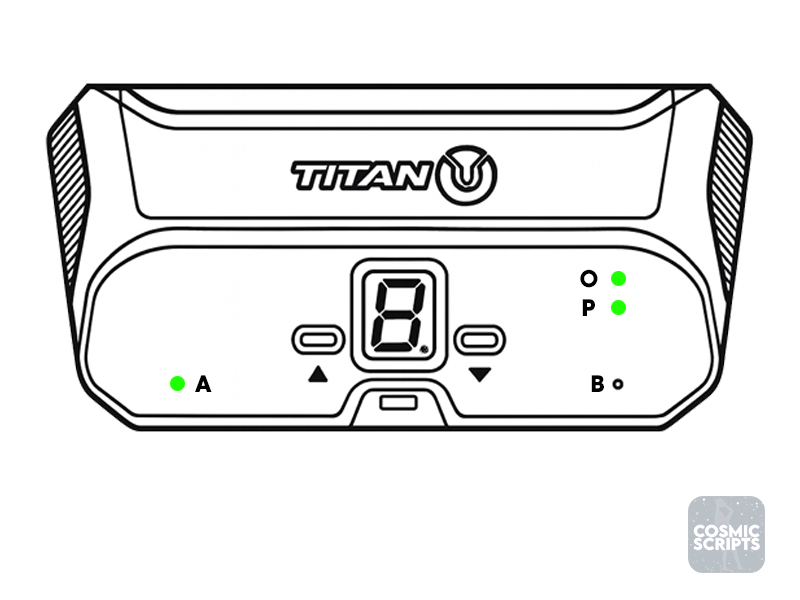
The Titan Two should not have any red lights on the following ports: A, B, O, P.
Once your Titan is connected to an Output or PROG port, the device should power on. The PROG port may appear yellow until a connection from Gtuner/Helios is detected.
If your Titan lights appear red, you may be using incompatible cables.
Try different cables.
Flashing "AU"
This is an Authentication error with the Titan Two. There are a few reasons this occurs.
- Ensure your Output Protocol is set appropriately in Gtuner (Device Configuration on bottom-right) or Helios (right-side).
- For PS5: P5General set PlayStation 5, for other options set PlayStation 4
- For Xbox: set Automatic
- Try a different controller
Slot Change
One common issue is not programming or selecting the proper Titan slot. Similar to Cronus Zen scripts, the Titan also requires you to program the Cosmic Vision script into its memory.
To change active slots: press the clear buttons next to the numbered screen in the middle of the device.
To program Cosmic Vision: follow the instructions in the Installation Guide.
External Troubleshooting
This section will help you determine and fix any issues with your External setup. Please reference the Command Prompt window that opens for any error messages.
Controller Issues
- If you experience no controller output, please close all programs and replug your controller into your PC, preferably into the back.
- Ensure you have high-quality data-transfer cables and that your controller's connection port is functioning properly.
HidHide Popup
- Newer versions require HidHide to be installed from the Installation Guide.
- Keep the program closed while launching.
Remote Play Troubleshooting
This section will help you determine and fix any issues with your Remote Play setup. Please reference the Command Prompt window that opens for any error messages.
Controller Issues
- Controller disconnections can be a common issue when using Remote Play.
This is usually attributed to a cable or controller issue. Ensure you have high-quality data-transfer cables and that your controller's connection port is functioning properly. Alternatively, you can use Remote Play with your controller connected wirelessly.
"Error: too many attempts"
Open a new browser tab and navigate to PlayStation Network.
Log in to your PlayStation account normally, then retry the launcher login link.
"Error connecting to device"
Your console's IP address has changed. Edit your IP address using the pencil icon on the main launcher screen.
"Failed to Init Session; Reason: Unknown Error type: 2148567826"
You need to enable Remote Play for your desired profile in the PS5 settings.
Gtuner Troubleshooting
This section will help you determine and fix any issues with your Gtuner setup. Please reference the "Output Panel" at the bottom of your window.
If you do not see the panel, reset your Gtuner layout under: View → Reset Layout.
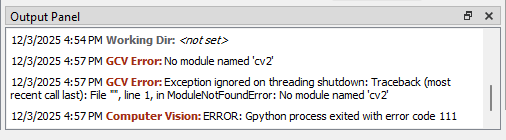
"ERROR: Gpython process exited with error code..."
Most of the error codes seen here are the result of not properly setting your Python environment.
Setting the incorrect environment will also cause these errors. Please make sure you are in the Miniconda3/envs/cosmic_env path. You can use the Copy Path button in the installer if needed.
Follow the guide to set the environment in the Gtuner Guide.
Helios Troubleshooting
Not Detecting Inputs
You need to click Restart Bridge on the right side of your application. This happens when the Titan cannot fully interface with Helios for various reasons—the most common being Gtuner and Helios running at the same time. Only use one of these applications at a time.
Capture Card Troubleshooting
This section will help you determine and fix any issues with your capture card setup. If needed, follow the Setup Guide or find a YouTube video for your specific capture card.
"[ WARN:0@0.393] global cap... backend is generally available but can't be used to capture by index"
This error means your Capture Card Video is open elsewhere. Close your capture in other software, then restart the script.
Black Screen / Screen Flickering
This is generally an issue on PlayStation for users who did not set their console video settings properly. This is often caused by incorrect HDCP and VRR configurations.
Follow the video settings in the Setup Guide.
Not Getting 60FPS
This can happen for multiple reasons:
- Make sure your capture card is plugged into a USB 3.0 port.
- Shrink the size of the Vision window (Remote Play/External).
- Make sure you configured the capture card with
CAP_PROP_FPS=60(Gtuner).