Cosmic ++ Setup Guide
Follow these steps to get Cosmic ++ running.
1. Download & Install
Download the latest version of Cosmic ++:
Run the Cosmic Environment Installer
- Download the latest Cosmic ++ files from the link above
- Extract the folder to an easily accessible location, like
C:\Cosmic - Open the installer folder
- Run Cosmic Environment Installer
Do NOT extract to Desktop/Documents if OneDrive is enabled
OneDrive syncing can block or delete environment files. Always extract to a location NOT synced with OneDrive.
If Something Fails
- Click Reset in the installer to perform a clean reinstall
- Run the installer as Administrator (right-click → Run as administrator)
- Ensure no antivirus is blocking
.bator.exefiles
2. System Setup
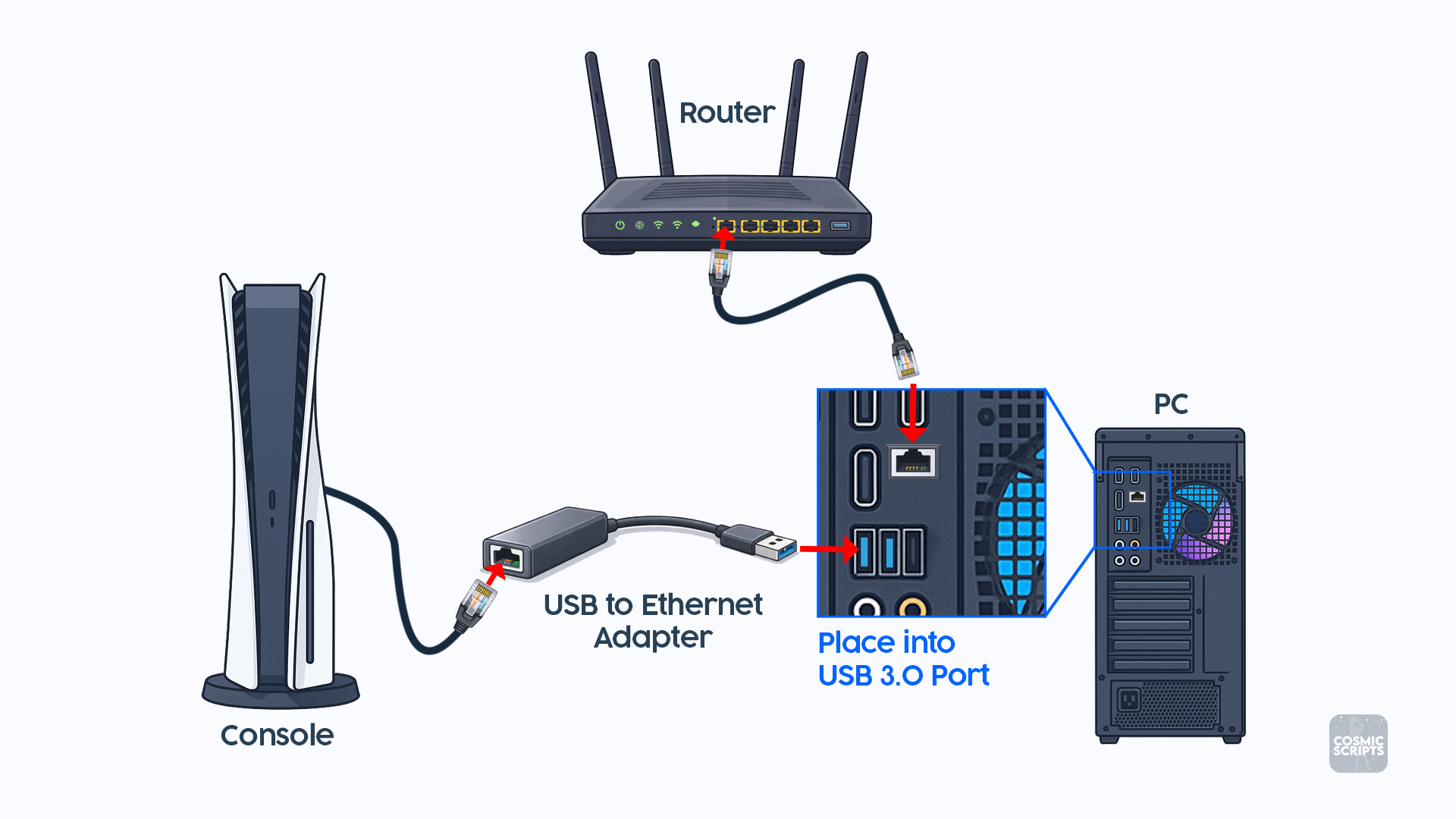
Adapter Connection
- Ethernet Cable from Router to PC
- Ethernet Cable from USB-Ethernet Adapter to Console
- USB-Ethernet Adapter into USB 3.0 Port (Blue)
Sharing Connection
This step allows your console to receive internet access through your PC.
Required for Cosmic ++
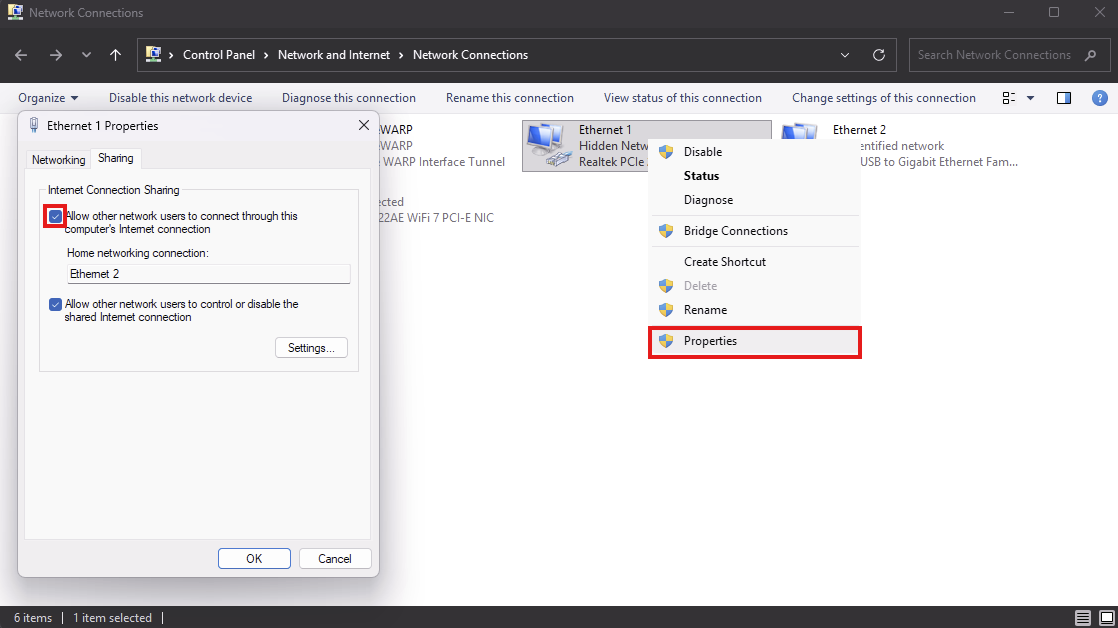
Internet Connection Sharing must be enabled for Cosmic ++ to function.
- Search PC for "View Network Connections"
- Identify your primary adapter (Ethernet 1 — connected to router)
- Right-click the adapter and select Properties
- Open the Sharing tab
- Check Allow other network users to connect through this computer's Internet connection
- Select your secondary adapter: Ethernet 2 (the USB adapter)
- Click OK
3. Running Cosmic ++
After completing setup:
- Navigate to your Cosmic ++ folder
- Run Cosmic ++ Launcher.bat
Upon first run:
- A login window appears
- Enter your Discord ID (not your username)
How to Find Your Discord ID
Your Discord ID is an 18-digit number.
Type ?id in any Discord chat to find it.
Tooltips Available
Hover your mouse over any ? icon inside the GUI to see detailed explanations for each option.