External Mode Setup (PC, Remote Apps)
(PC Games, Chiaki PS Remote Play, XStreaming Xbox Remote Play, or any external input application)
External Mode is used when Vision sends inputs through a virtual Xbox 360 controller instead of Titan Two.
Use this method if:
- You are playing on PC (Steam Version)
- You are using Chiaki or another PS Remote Play app
- You want to use XStreaming Desktop
- Any other external apps that accept a controller input
Requirements
Before starting, make sure you have downloaded and installed all required programs and environments, including HIDHide, for your setup in the Installation Guide
External Mode
1. Open the Cosmic Remote Launcher
In your extracted Cosmic Vision folder, open the Cosmic Remote Launcher
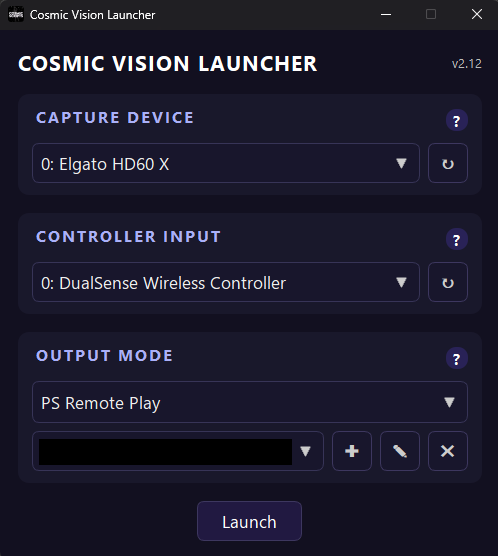
2. Select Capture Card & Controller Input
- Choose your Capture Device
(PC users: Select OBS Virtual Camera as your capture device)- Run the Capture Device in your preferred preview quality (540p, 1080p, None)
- For best performance, select 540p or None once you have your meter detection setup
- Choose your Controller Input device
- Select the desired polling rate as required
- Output Mode set External
None found?
- Open HIDHide and ensure your controller is not hidden
- Try a different USB port or cable
- Refresh the Input
3. Launch the Session
Press Launch.
Upon first run:
- A login window appears
- Enter your Discord ID (not your username)
How to Find Your Discord ID
Your Discord ID is an 18-digit number.
Type ?id in any Discord chat to find it.
Performance Tips
Improve FPS & Stability
- Shrink or minimize the Cosmic Vision window until it shows 60 FPS
- Set Overlay → Meter or Overlay → Off in the Vision menu
(“Off” disables the on-screen overlay completely) - Use "No Display" for max performance once meter detection is set properly
- Ensure your PC and console are on wired Ethernet
4. Run Game Application
Whether you use PC Steam / Chiaki / XStreaming:
- Open the application
- Begin gameplay normally
- Vision will output through the virtual Xbox 360 controller
Steam Usage
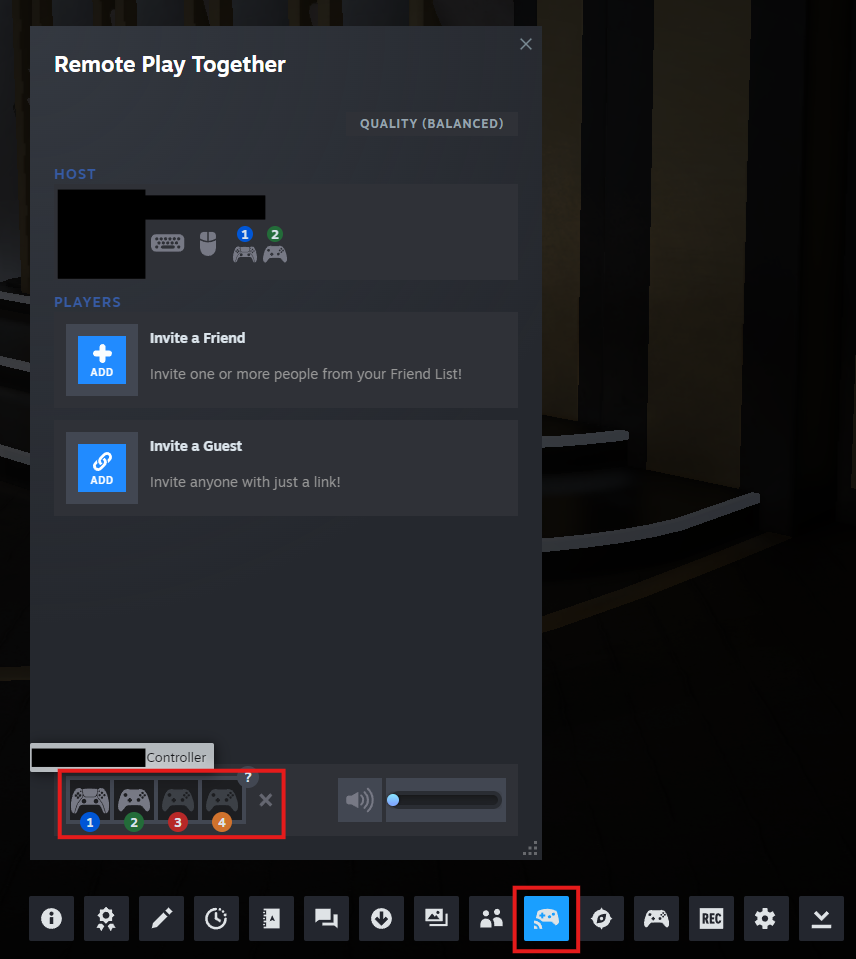
Steam occasionally ignores controllers hidden by HIDHide. If this occurs, use the in-game Steam menu to choose the correct controller as shown below.
XStreaming Usage
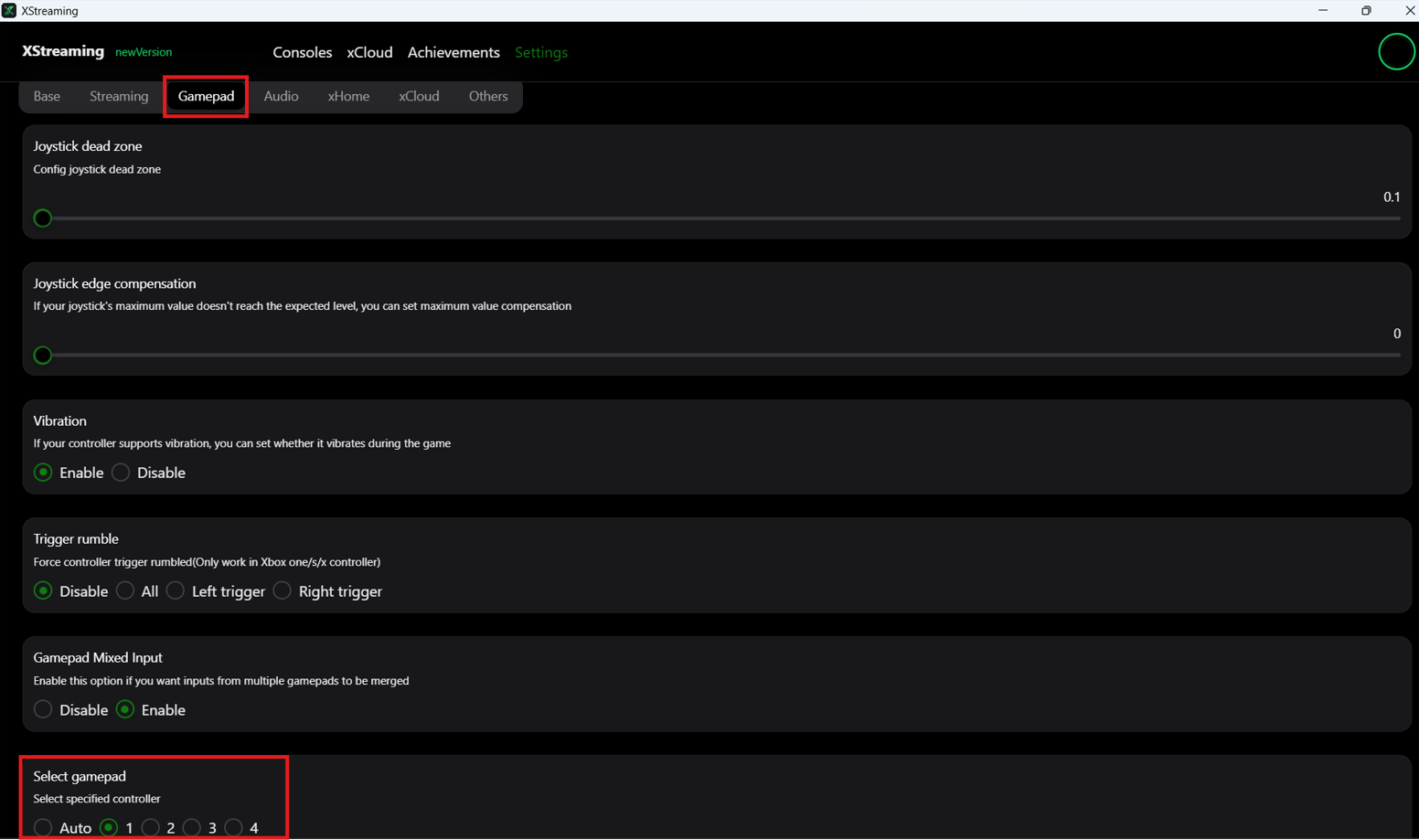
XStreaming ignores controllers hidden by HIDHide. Please refer to the settings below.
5. XStreaming Desktop Settings (Xbox Remote Play)
When using XStreaming, you must manually set your input gamepad.
- Navigate to XStreaming settings
- Select "Gamepad" tab
- Scroll down until you see "Select gamepad" section
- Select the applicable gamepad
- Usually you will set this to 1
- If this isn't working, test which output the game is seeing:
- In the Cosmic Vision GUI, set L1 to Rhythm Shot
- If your L1 button shoots, then you know you have the right output
6. Steam Controller Settings (PC)
Follow these steps if Steam sees the wrong controller.
- With the game open, press Shift+Tab to open the Steam in-game menu.
- Select the Remote Play Together button.
- Drag and drop your actual controller to the X.
Finding Your Real Controller
Click each controller until your physical controller vibrates. That is the controller you should move.
If using a PlayStation controller, disable their use in Steam completely:
- Open your Steam Settings and click on the controller tab
- Set PlayStation Controller Support to Not Enabled

7. Quick Reference — Launch Process
Repeat the following sequence:
- Close anything open (including force-closing Steam from the system tray)
- Open Cosmic Remote Launcher
- Select your options → Launch
- Open your preferred Game Application
- Adjust controller selection, if required (Steam/XStreaming)
8. Learn Cosmic Vision
Once External Mode is running smoothly:
Learn the GUI — to learn how to navigate the Cosmic Vision menu
Usage Guide — to learn how to properly use Cosmic Vision