Cronus Zen Connection
This page covers how to correctly connect your Cronus Zen on PS5, Xbox Series X|S, and PC.
Follow the instructions carefully to avoid disconnects or bypass failures.
PS5 Setup
Required PS5 Settings
Before using your Zen on a PS5 console, adjust these system settings: - Settings → Accessories → Controllers → Communication Method → Use USB Cable
Your controller must be connected via USB, not Bluetooth. Turning off Bluetooth is no longer required.
PS5 Bypass
This is required for PS5 to accept a 3rd-party input device like the Zen.
Supported Firmware
Cronus Zen Firmware: 2.2.12+
Bypass Video Guide
https://guide.cronus.support/bypass
PS5 Bypass Video Example
Bypass Text Guide
PS5 Bypass
- Plug the controller into the Cronus Zen’s
A1USB port (left-side USB). - Connect the Zen to your PS5 using the
OUTPUTUSB port (top USB). - Ensure it is on the Zen Alien-Head Screen by changing slots.
- On the PS5, navigate to:
Settings → Accessories → General → Turn Off Accessories and press this option. - Press the blue reset button on the underside of the Cronus Zen.
- As the Zen reboots, hold RIGHT D-PAD on your controller until the menu begins rapidly switching.
- You have now successfully bypassed and can launch your game.
If the bypass fails
Disconnect the Zen from the PS5 and repeat starting from Step 2.
Xbox Series X|S Setup
Standard Xbox Controller
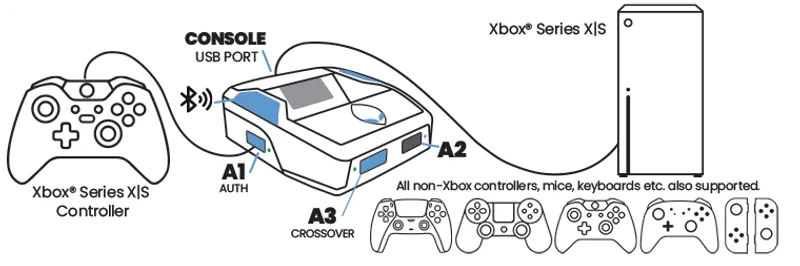
Xbox Controller Setup
- Plug your controller into the Zen's
A1USB port (left-side USB). - Plug the Cronus Zen into your Xbox using the
OUTPUTUSB port (top USB). - That’s all that is required for standard Xbox play.
Crossover Controllers, Mice, Keyboards
Crossover Mode
- Plug your non-Xbox controller, mouse, or keyboard into the
A3USB port (front-left). - You must still keep an official Xbox controller connected to A1 for authentication.
Gamesir Controller Fix
Gamesir Compatibility Fix
Some Gamesir controllers require firmware rollback for Zen compatibility.
Guide: https://guide.cronus.support/gamesir-fix
PC Setup
PC Connection Instructions
PC Setup
- Plug your controller into the Zen's
A1USB port (left-side USB). - Plug the Cronus Zen into your PC using ONLY the
OUTPUTUSB port (top USB). - Do NOT leave the right-side
PROGport plugged in during gameplay.
Why?
Leaving the PROG port connected forces Zen Studio mode and can cause you to be kicked from the game.