Registration & Installation
Cosmic Zen scripts are available in free and paid tiers. Only paid scripts require serial number registration. Free scripts can be installed and used immediately without registration.
After registration is approved, you’ll install the script through the Cronus Zen Marketplace.
1. Registering Your Serial Number
If you plan to use Cosmic Zen paid scripts, you must register your Cronus Zen serial number before installation.
Registration is handled in the Cosmic Scripts Discord:
Discord Registration Channel #zen-registration →
You will submit your Cronus Zen serial number using the registration form in that channel.
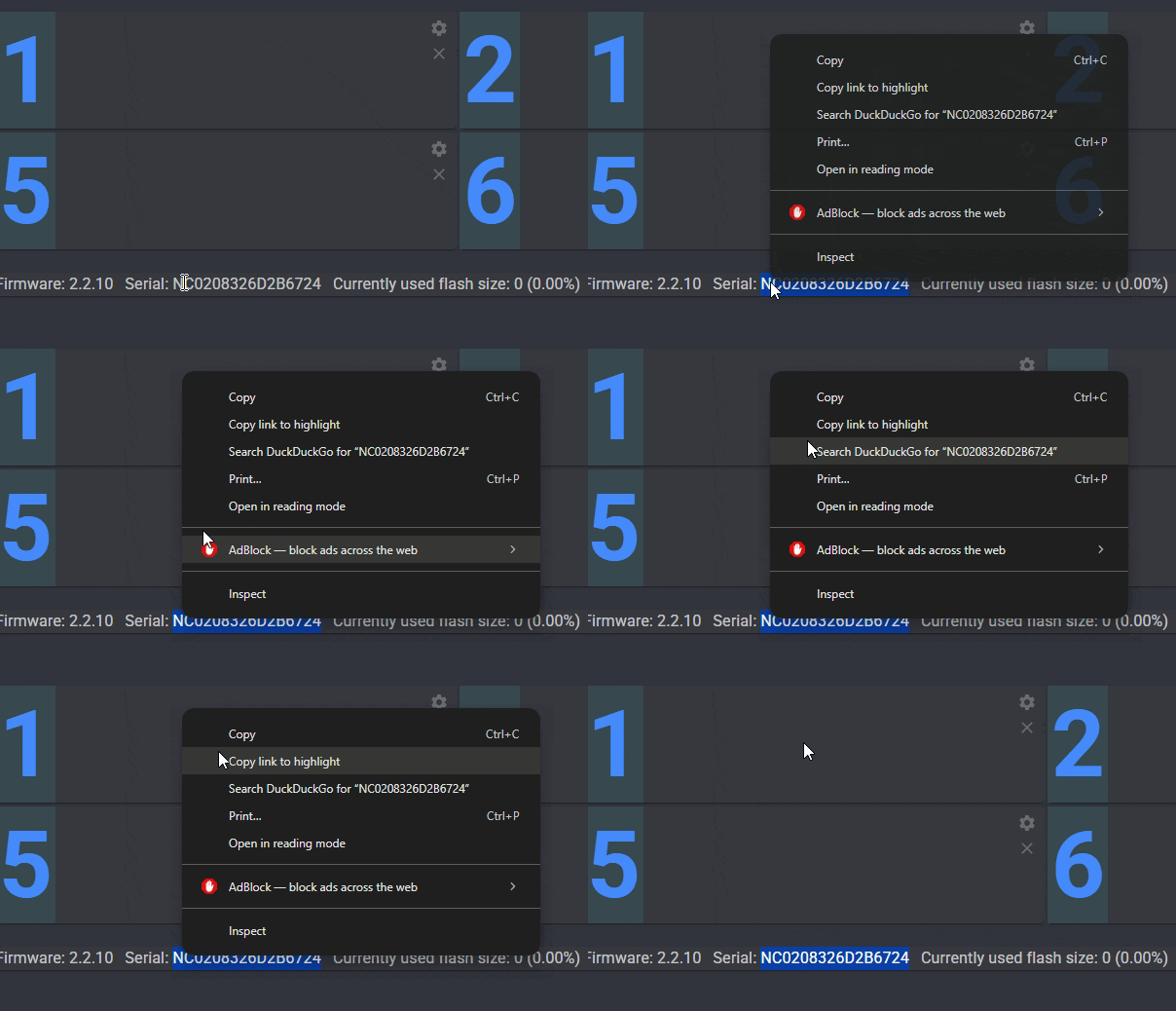
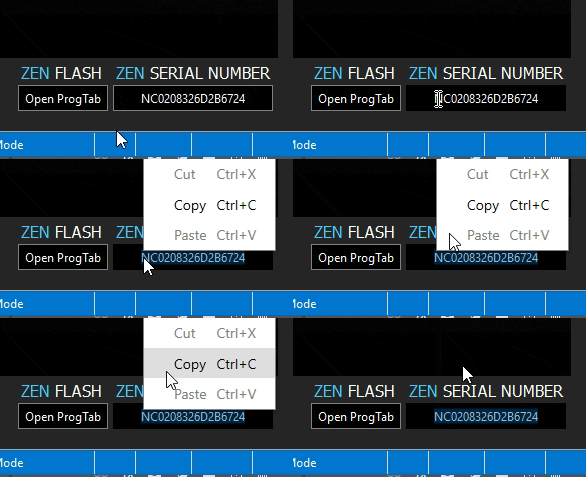
How to find your Serial Number
You can get your serial number from:
- Zen Studio
- Cronus Marketplace
Important Notes
Before You Submit
- Copy & paste your serial directly from Zen Studio or the Marketplace.
- Double-check the number before submitting.
- If you submit the wrong serial number, a staff member has to manually fix it — which may delay activation depending on availability.
Once your serial is registered, you can move on to installation.
2. Downloading & Installing the Script
All Cosmic Zen scripts (Lite, Premium, XP Generator, Team Snipe) are delivered through the Cronus Zen Marketplace.
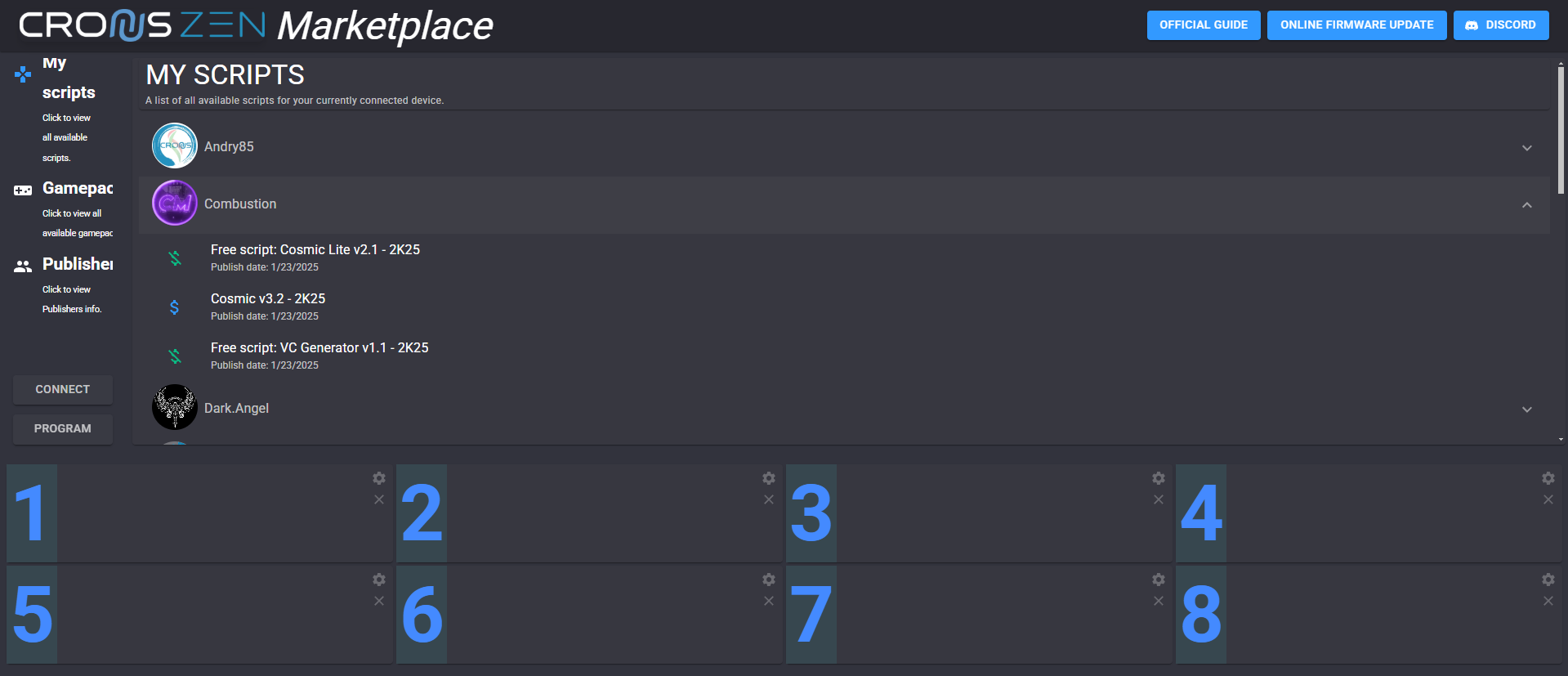
Below is the typical flow for installing Cosmic Zen from the Marketplace.
Step 1 — Open the Marketplace
Make sure Zen Studio is closed and navigate to https://marketplace.cmindapi.com/ in Chrome or Edge.
Step 2 — Connect Your Cronus Zen
- Click Connect in the Marketplace.
- Plug your Cronus Zen into the right-side USB port on your PC.
- Select Cronus Bridge → Connect.
- If you are redirected to update your Cronus Zen firmware, please reference: Firmware Upgrade
- If you see "Unhandled Error Occurred" please disconnect your Zen, refresh the page, and try again.
Step 3 — Select Your Script
- On the left side, go to My Scripts.
- Locate and click on the publisher Combustion.
- Choose the desired script variant (Lite, Premium, etc.).
Step 4 — Program a Slot
- Drag the script to an open slot along the bottom.
- Click Program.
- Wait until programming completes, then unplug your Zen.
Firmware Upgrade (If Required)
If your Zen is outdated, plugging it in may redirect you to the Online Firmware Update Tool:
Bootloader Mode Reminder
- Use the top USB port on the Zen.
- Hold the blue button on the underside after plugging in.
- Keep holding until the Zen shows Bootloader mode.
After updating firmware, return to the Marketplace and repeat the installation steps.
3. After Programming
Programming is complete. Select the correct slot using the right-side blue button on your Zen, then proceed with connection and game setup.