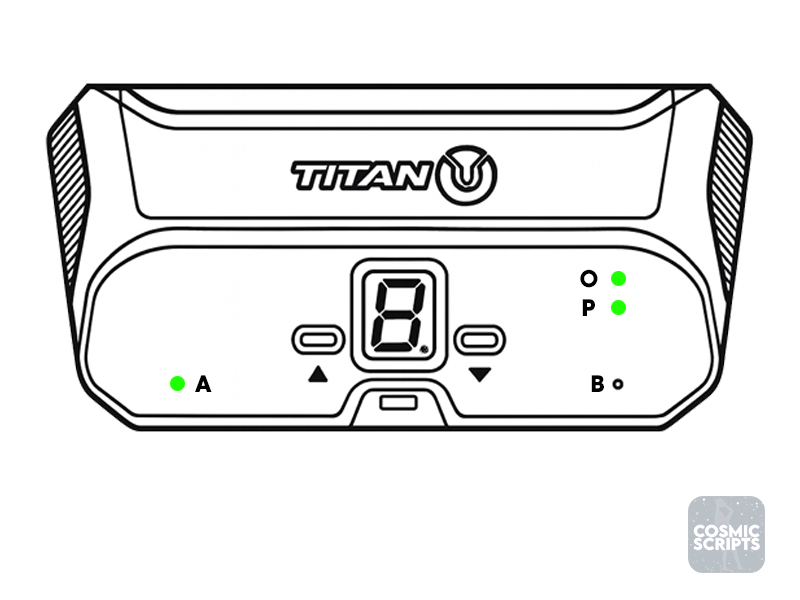
Titan Two Output
Use Titan Two when your controller output should go through a Titan Two.
Titan Two Setup (Non-PS5)
This method is used for non-PS5 users
If you are using Titan Two as your controller output:
- Connect Titan Two to PC via the
PROGport. - Connect your controller to the Titan Two's
Input-Aport. - Connect Titan Two to your console via the
Outputport.
Issues
If you experience any issues with your Titan Two output, make sure all lights on the device are green. Adjust Output Protocol in Vanta if your setup requires it.
Titan Two Setup (PS5)
PS5 users running Titan Two must use a compatible bypass device such as the P5General, P5Mate, Cronus Zen, or Wingman FGC2.
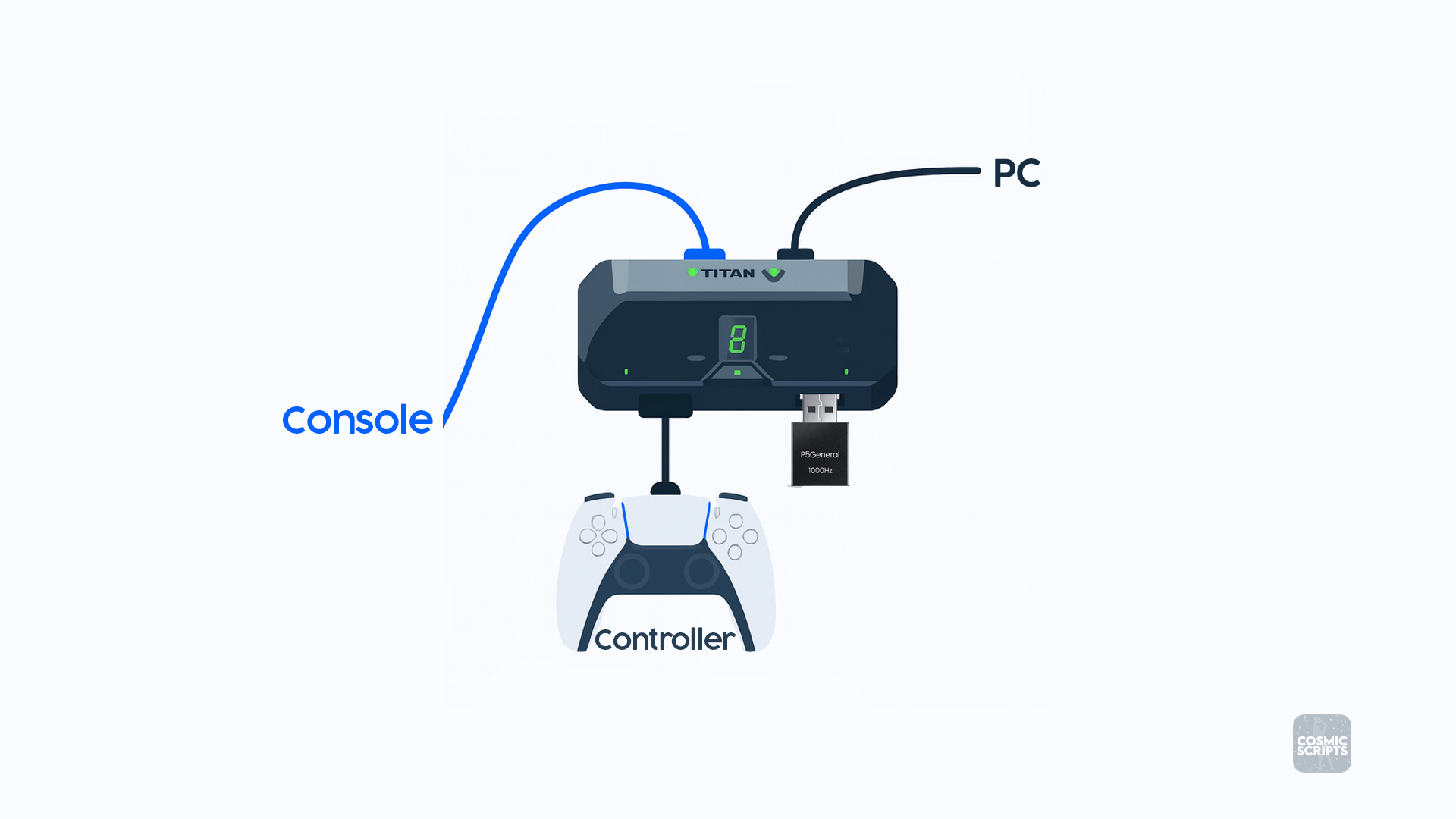
Titan Two + P5General
This method is preferred for PS5 users
The Besavior P5General is the cheapest option and provides the user with minimal input delay.
Note
Unlike other connection options, the P5General requires your Titan Two Output Protocol to be set to PlayStation 5
Connection order:
- Controller into
Input-A - P5General into
Input-B - Titan Two
Outputto Console - Titan Two
PROGto PC
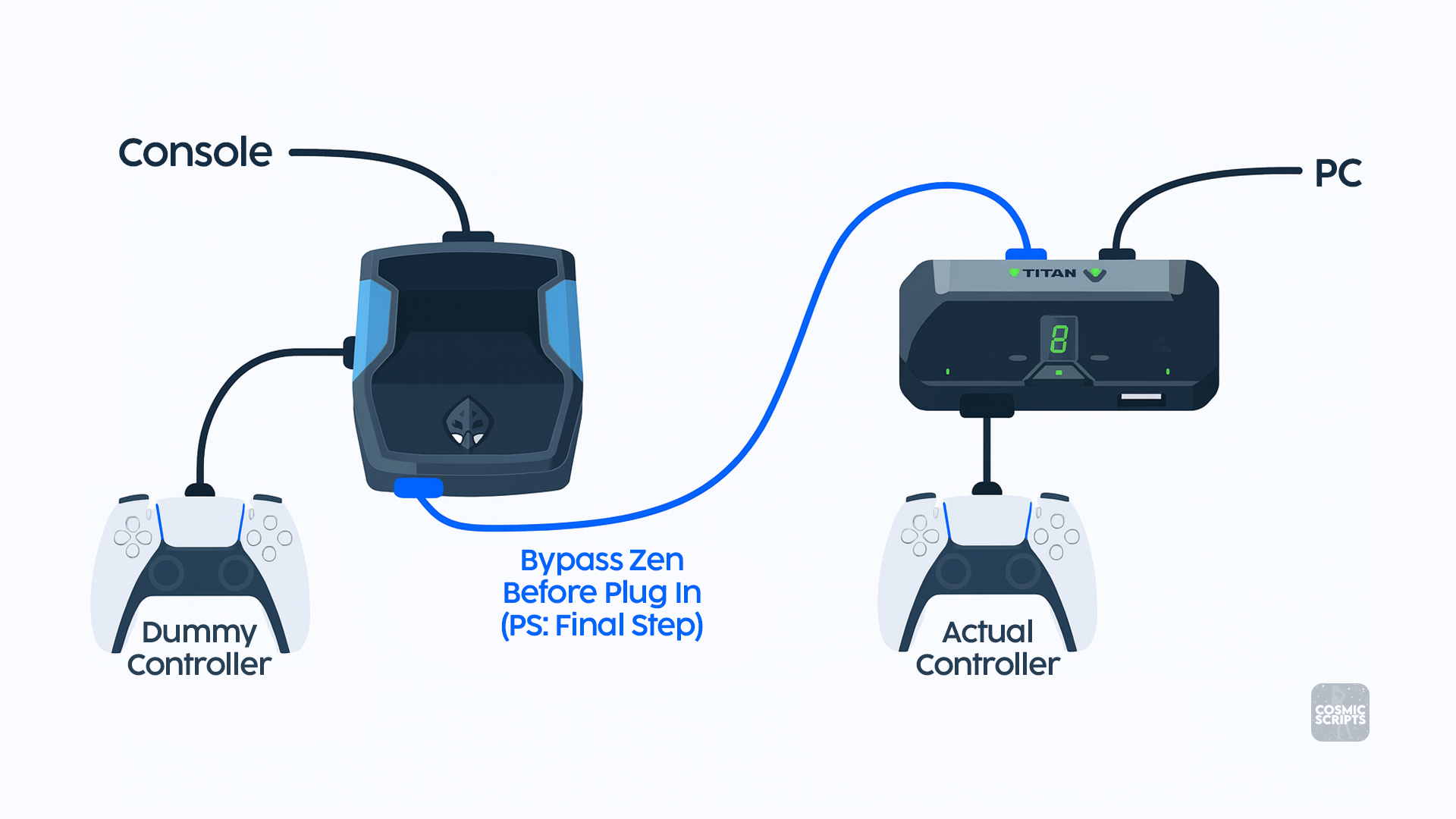
Titan Two + Zen Connection
Connection order:
- Bypass Zen with PS5 (Bypass Guide →)
- Connect Controller to Titan Two
Input-A - Titan Two
PROGto PC - Titan Two
Outputto Zen (Final Step)
Vanta Output Setup
- Finish Setup first so your capture source is ready.
- Open Vanta.
- Set OUTPUT to Titan Two.
- Leave Output Protocol on Auto unless your setup needs PS5 or XB.
- If Vanta asks to program a Titan Two slot, use Program.
- Start your selected runtime.
Ready Check
Titan Two is ready when you see 3 green lights on the device and Vanta shows the Titan status as connected.