PS Remote Play Output
Use PS Remote Play when Vanta should connect to your PS5 Remote Play session.
Console And Controller Setup
- Finish Setup first so your capture source, console video settings, and Ethernet setup are ready.
- Confirm Remote Play is enabled on your PS5.
- Connect both PC and PS5 with wired Ethernet.
- Connect your controller to your PC either via cable or wirelessly.
Want to use a Cronus Zen?
Vanta Remote Play can accept inputs from a Cronus Zen. Connect the Zen to your PC as normal through the output port. Cronus Zen Guide
Opening Order
Repeat the following sequence:
- Open Vanta and set OUTPUT to PS Remote Play.
- Choose your Console.
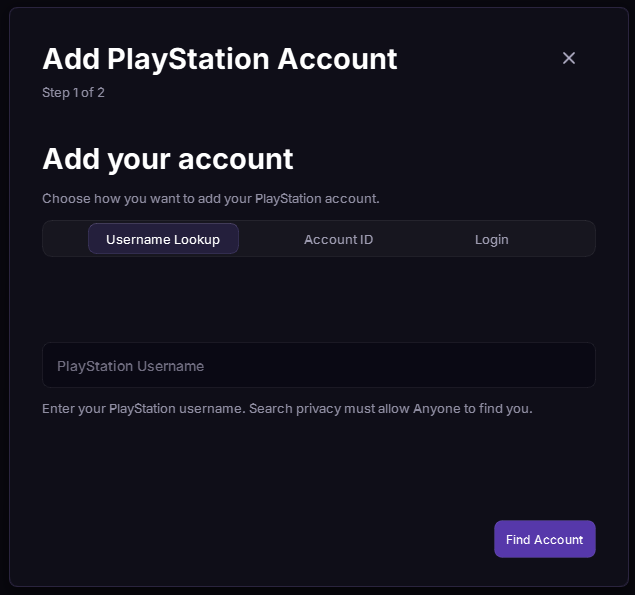
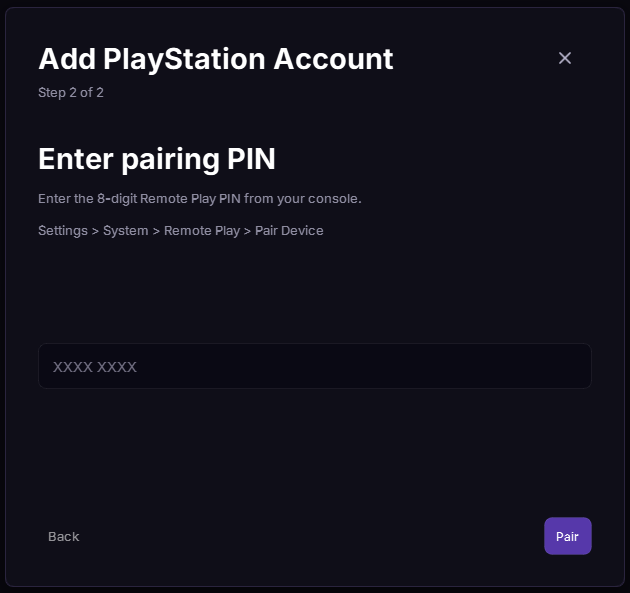
- Add or choose your Account and follow the on-screen directions.
- In Input Selection, choose your controller.
- Start your selected runtime.
Console Not Listed?
Use Manual if your console does not appear.
Account Setup
When adding your account, Vanta gives you a few options:
- Username Lookup is the easiest option.
- Account ID is useful if you already have it.
- Login is a backup if lookup does not work.
Ready Check
PS Remote Play is ready when Vanta shows the session as connected and your controller is selected.
If Remote Play Does Not Connect
Check that Remote Play is enabled, the console is awake, both devices are on the same network, and your firewall is not blocking the connection.