Virtual Controller Output
Use Virtual Controller when a PC app or remote-play app should receive controller input from your PC.
Downloads
Confirm you installed the downloads for your setup:
- Vanta
- ViGEmBus
- HIDHide
- XStreaming Desktop if you use XStreaming Desktop
Controller Setup
- Connect your physical controller to your PC.
- Open Vanta before opening the target app.
- Set OUTPUT to Virtual Controller.
- In Input Selection, choose your physical controller.
- Confirm ViGEm Client and HidHide show ready/available status.
Opening Order
Repeat the following sequence:
- Close all target apps, including Steam, games, and remote clients. If using Steam, fully close it from the system tray.
- Open Vanta and set OUTPUT to Virtual Controller.
- Connect your physical controller, then choose it in Input Selection.
- Start your selected runtime.
- Open your target app last.
Steam Users
Closing Steam before opening Vanta helps the virtual controller appear in the right order.
Steam Controller Settings
Follow these steps if Steam sees the wrong controller.
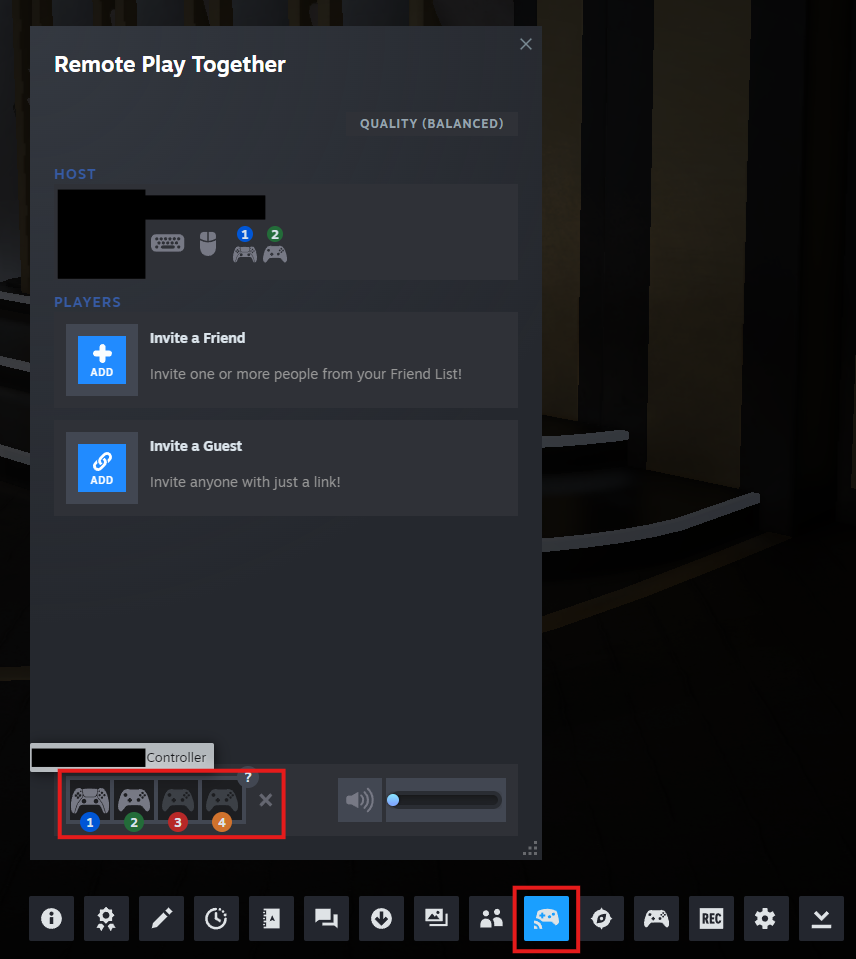
- With the target app open, press Shift+Tab to open the Steam in-game menu.
- Select the Remote Play Together button.
- Drag and drop your actual controller to the X.
Finding Your Real Controller
Click each controller until your physical controller vibrates. That is the controller you should move.
If using a PlayStation controller, disable their use in Steam completely:
- Open your Steam Settings and click on the controller tab.
- Set PlayStation Controller Support to Not Enabled.

XStreaming Desktop
When using XStreaming Desktop, Vanta should be opened first.
- Start Vanta and confirm Virtual Controller output is ready.
- Open XStreaming Desktop.
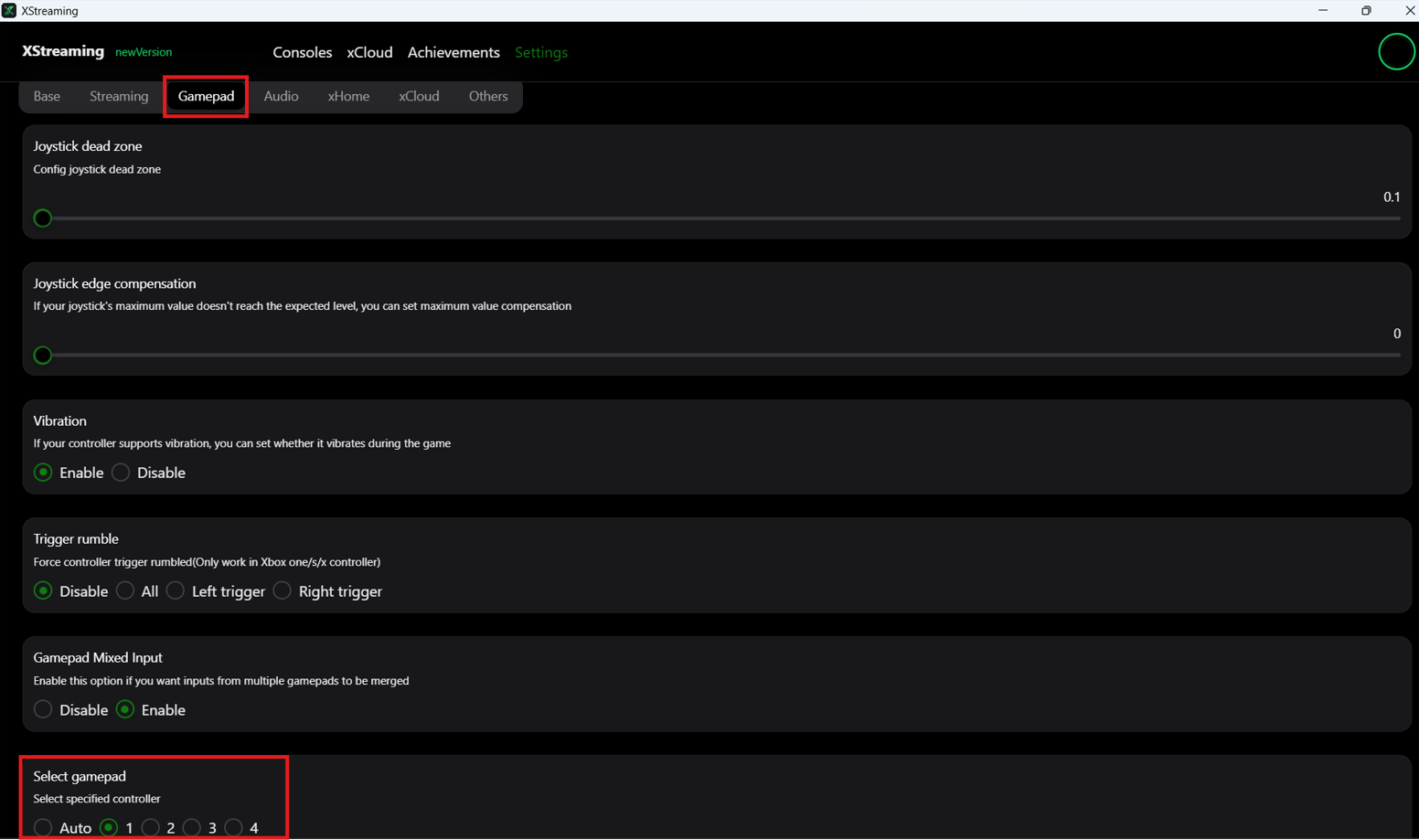
- Go to XStreaming settings.
- Open the Gamepad tab.
- Select gamepad 1.
Ready Check
Virtual Controller is ready when Vanta shows the virtual output and your physical controller is selected.