Vanta Troubleshooting
This page covers general Vanta setup and output issues only.
Start Here
Try these first:
- Close Vanta.
- Close target apps, remote clients, Steam, Gtuner, Helios, and other controller tools.
- If using Steam, fully close it from the system tray.
- Reconnect your controller and output hardware.
- Open Vanta again.
- Select your capture source.
- Select your output mode.
Vanta Does Not Open
- Download the latest Vanta release again from the Vanta setup page.
- Move Vanta to a simple folder such as
C:\Vanta. - If Windows blocks the app, allow it from the Windows security prompt.
- Right-click Vanta and choose Run as administrator.
- Restart your PC if Vanta still does not open.
Capture Source Is Missing
- Unplug and reconnect the capture card.
- Use a USB 3.0 port on the PC.
- Close OBS, capture-card software, browser previews, and any app that may already be using the capture card.
- Open Vanta.
- Open Capture Settings and refresh/select the source again.
Black Screen Or Flickering Video
- On PS5, confirm HDCP is off.
- Turn off HDR and VRR.
- Confirm your HDMI cables are connected in the correct order.
- Try a different HDMI cable.
- Try a different USB port for the capture card.
Output Does Not Connect
- Confirm the correct OUTPUT mode is selected.
- Confirm your controller is connected.
- Choose the controller in Input Selection if the mode shows that option.
- Close other controller tools.
- Reopen Vanta before opening the target app or remote client.
Virtual Controller Is Not Showing
- Install ViGEmBus from the setup downloads.
- Install HidHide from the same page.
- Restart your PC.
- Close all target apps, including Steam and remote clients.
- Open Vanta before opening the target app.
- Set OUTPUT to Virtual Controller.
- Select your physical controller in Input Selection.
- Confirm ViGEm Client and HidHide show ready/available status.
Steam Controller Issues And Double Inputs
Use this if Steam sees the wrong controller, one button press acts like two inputs, or your controller input is going to the wrong place.
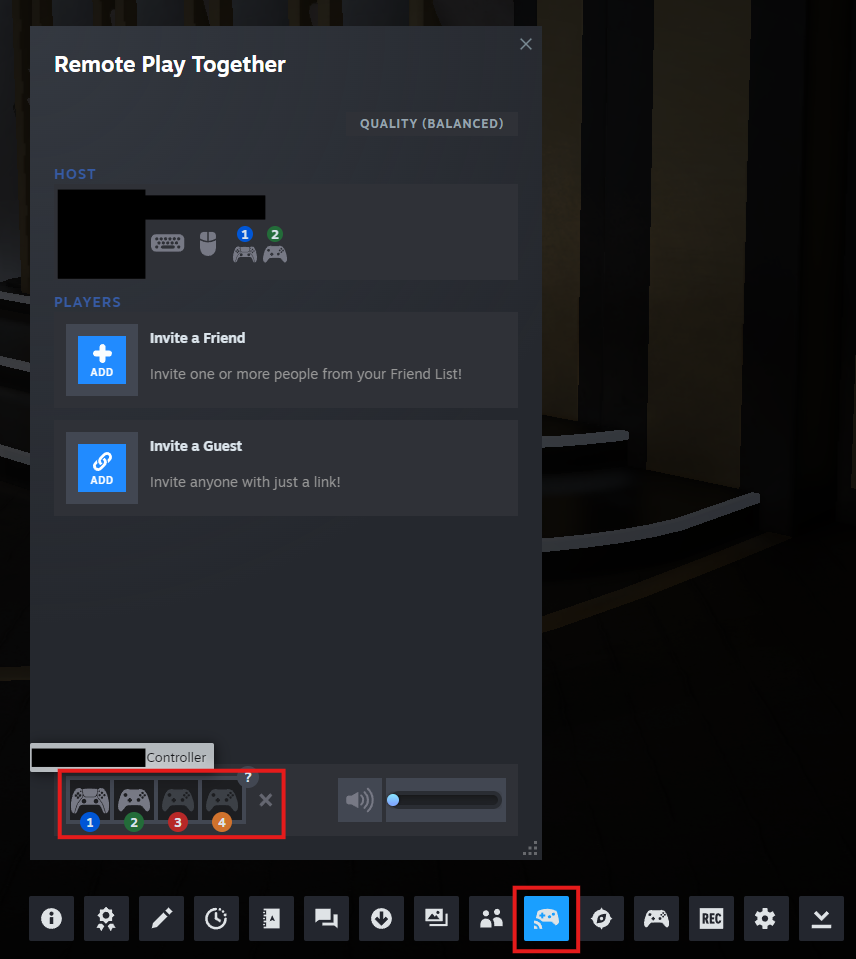
- With the target app open, press Shift+Tab to open the Steam in-game menu.
- Select the Remote Play Together button.
- Drag and drop your actual controller to the X.
Finding Your Real Controller
Click each controller until your physical controller vibrates. That is the controller you should move.
XStreaming Desktop Does Not See The Controller
- Start Vanta first.
- Set OUTPUT to Virtual Controller.
- Confirm the virtual output is ready.
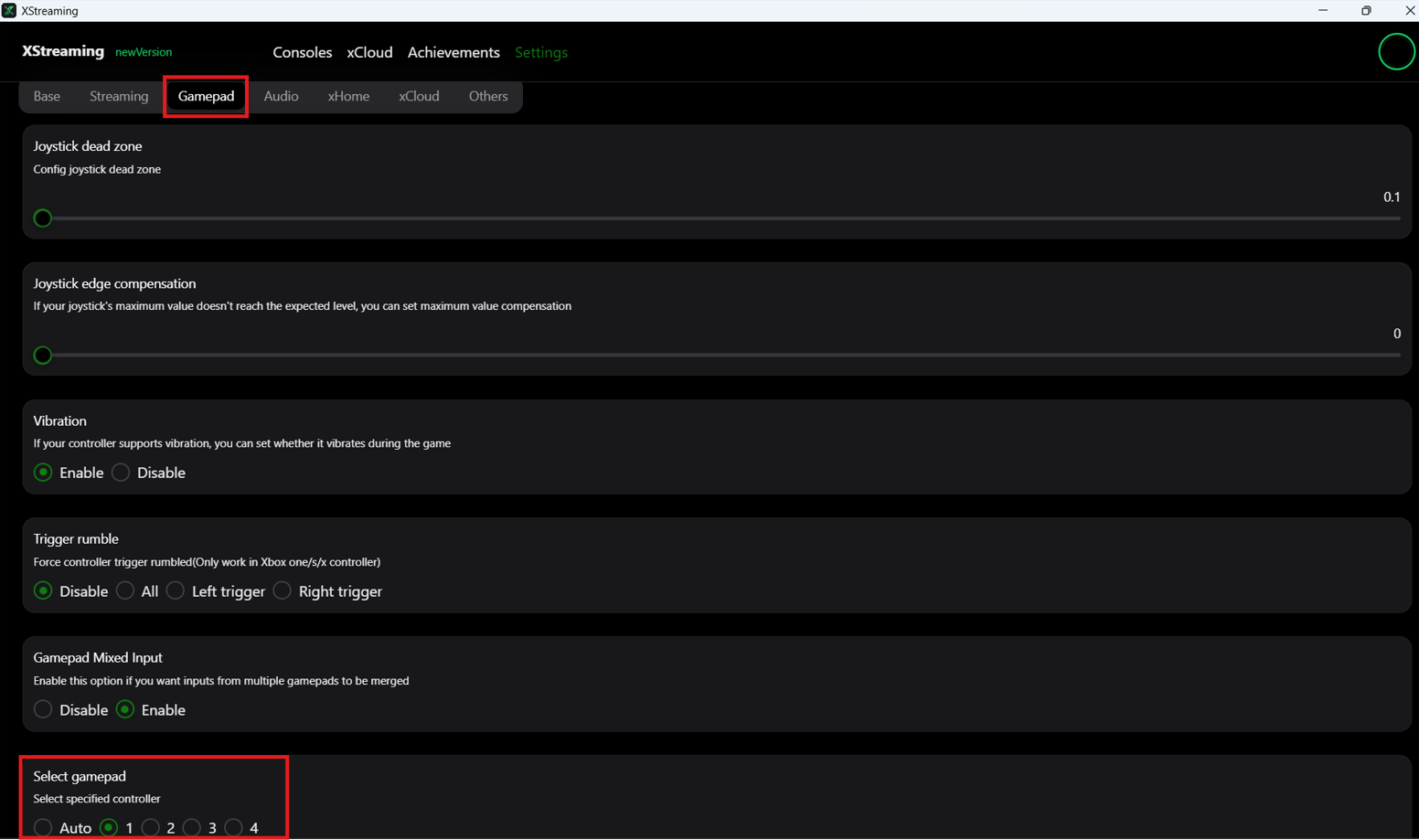
- Open XStreaming Desktop.
- Open XStreaming settings.
- Go to Gamepad.
- Select gamepad 1.
PS Remote Play Does Not Connect
- Confirm Remote Play is enabled on the console.
- Wake the console before connecting.
- Use wired Ethernet for both PC and console.
- Confirm the PC and console are on the same network.
- If the console does not appear, use Manual and enter the console IP address.
- If the saved console no longer connects, update the console IP.
- If account lookup does not work, try Account ID or Login.
- Check Windows Firewall if Vanta cannot reach the console.
Titan Two Is Not Detected
- Connect Titan Two
PROGto the PC. - Connect Titan Two
Outputto the console or target device. - Use data-capable USB cables.
- Confirm you see 3 green lights on the Titan Two device.
- Close Gtuner and Helios before opening Vanta.
- Set OUTPUT to Titan Two.
- Leave Output Protocol on Auto unless your setup requires PS5 or XB.
- Use Program if Vanta asks to program a Titan Two slot.
Still Stuck?
Reach out in the Cosmic Discord with:
- Your setup type.
- Your output mode.
- A screenshot of the Vanta output panel.
- A short description of what you expected and what happened.